Student
Create a visual for a presentation, study guide, or project cover directly from a phone.
You get a clear starting image that supports the idea instead of competing with it.
generate a presentation visualMobile image workflow
Ideogram for Android makes it easier to shape visual ideas when you are away from a desktop. Use a focused prompt, review the first result, and refine the details that matter most for your project.
Useful mobile scenarios
A mobile image workflow should reduce friction without reducing control. These four use cases show where a compact prompt-and-review loop is most useful.
Create a visual for a presentation, study guide, or project cover directly from a phone.
You get a clear starting image that supports the idea instead of competing with it.
generate a presentation visualDraft a product scene, social post concept, or campaign direction between customer tasks.
You can explore several visual directions before committing to a final brief.
create a product conceptTurn a short idea into a thumbnail, mood image, or vertical post concept while traveling.
You keep your content pipeline moving without waiting to reach a workstation.
make a social imageTest composition, color, lighting, and subject variations during an early ideation pass.
You collect useful references quickly and return to detailed production with a clearer direction.
explore visual directionsPhone versus desktop
The goal is not to make a phone behave like a full studio. It is to use its strengths for quick input, review, and iteration while reserving detailed finishing for the right tool.
Best use
Mobile workflow
Fast ideation, reference images, and lightweight revisions
Desktop workflow
Detailed composition, editing, and production handoff
Prompt entry
Mobile workflow
Short, focused descriptions that are easy to type and revise
Desktop workflow
Longer briefs with room for structured notes and variants
Review style
Mobile workflow
Quick checks for subject, mood, framing, and obvious errors
Desktop workflow
Pixel-level inspection and side-by-side production review
Input comfort
Mobile workflow
Voice typing, copy-paste, and saved prompt fragments
Desktop workflow
Physical keyboard, multiple windows, and richer file handling
Ideal output
Mobile workflow
Concepts, posts, thumbnails, mood boards, and visual references
Desktop workflow
Final assets, layered compositions, and delivery-ready files
Revision rhythm
Mobile workflow
Small changes between attempts while an idea is fresh
Desktop workflow
Broader revisions across a project with organized asset versions
Connection to the next step
Mobile workflow
Share, save, or hand off the strongest direction quickly
Desktop workflow
Edit, export, organize, and prepare assets for publication
Prompt quality check
A good mobile result is recognizable at a glance, intentional in composition, and usable as a next step. Compare a vague request with a prompt that gives the model enough direction.
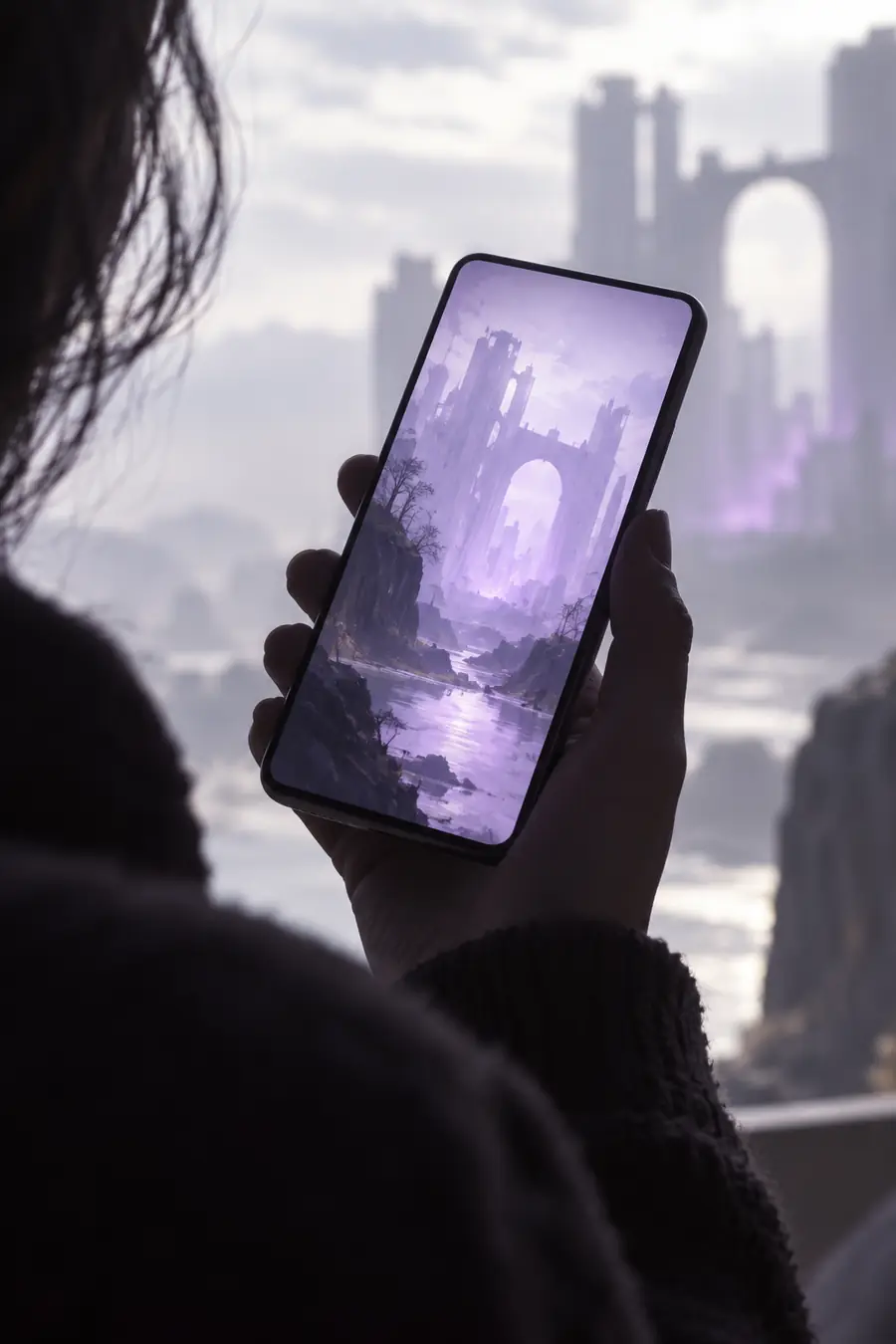 Vague prompt
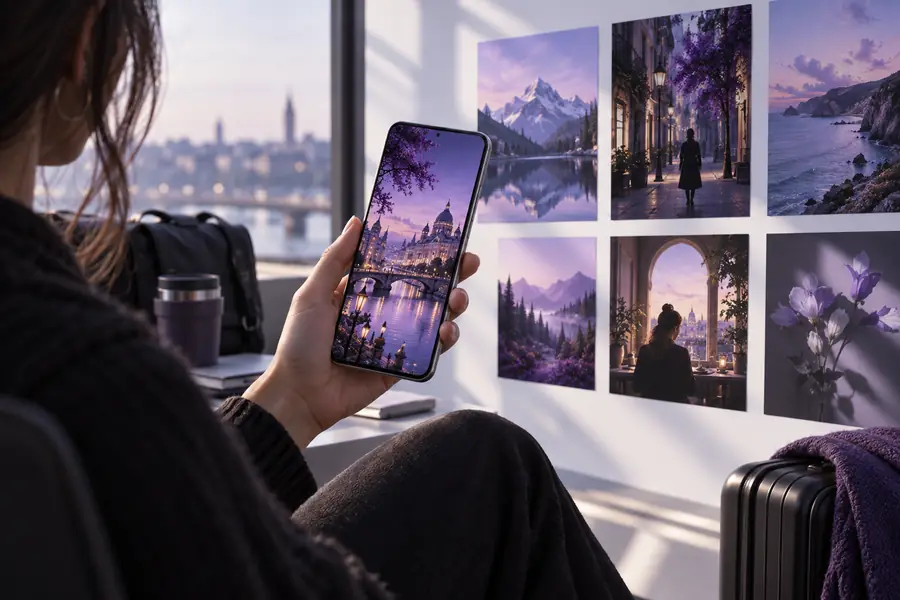 Directed prompt
Iteration planning
Use the slider to estimate how a small batch of mobile concepts can support an early ideation session. The figures are planning aids, not a promise of identical results.
credits
minutes
notes
Simple operating loop
Keep the mobile process narrow: describe one visual goal, inspect the result, then revise only the detail that is holding it back.
Name the subject first, then add the setting, mood, framing, and intended use. A focused prompt is easier to review on a small screen.
Look for the essentials before polishing: correct subject, believable layout, readable focal point, and a style that fits the task.
Change one meaningful detail at a time, such as lighting, camera angle, background, or color palette, so you know what improved the image.
Mobile quality markers
These simple markers help you decide whether a mobile result is ready to share, worth revising, or better treated as a reference for the next draft.
Scenario FAQ
Answers to practical questions about using an Android phone for prompt-based image creation.
Yes, an Android phone can support a mobile image workflow for writing prompts, reviewing results, and making quick revisions. A larger screen or desktop may still be more comfortable for detailed comparison and finishing work.
Start with the main subject, then describe the setting, composition, lighting, mood, and intended format. Keep the first version focused so you can identify which detail needs revision instead of changing everything at once.
A phone is well suited to ideation, social concepts, references, thumbnails, and early creative direction. For precise editing, extensive asset management, or final production, you may prefer to continue on a larger device.
Use short prompt sections and copy useful phrases into a note for reuse. Voice typing can help with the first draft, but review the transcription carefully because a single mistaken word can change the subject or style.
Change one variable per attempt, such as the background, angle, lighting, or color palette. Comparing focused revisions makes it easier to keep the strongest parts of the original while correcting the weak area.